Why Your Laptop’s Fan Suddenly Ramps Up: Understanding Unexpected Cooling Bursts
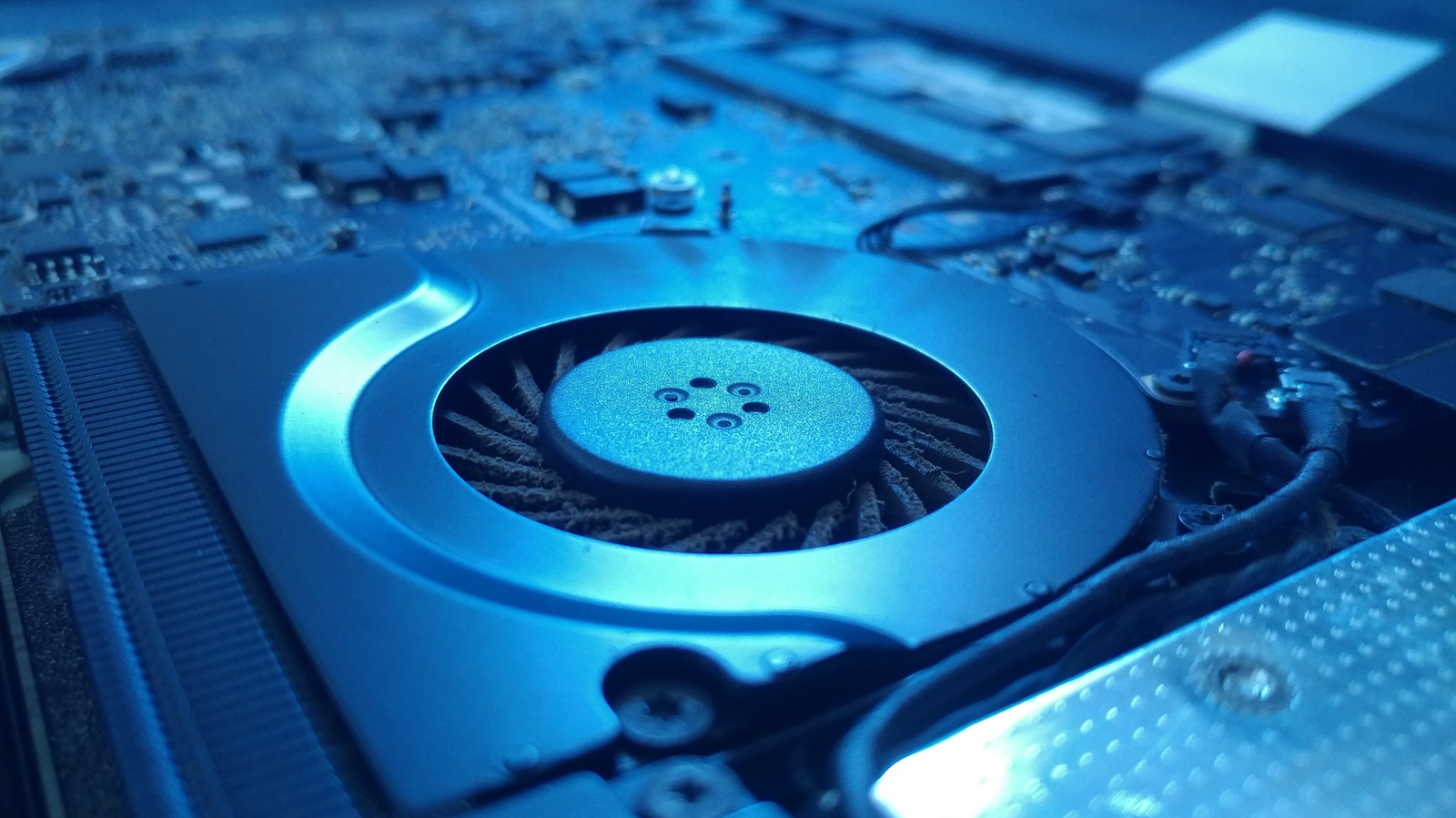
Many laptop owners notice that as soon as they settle in to work, their machines switch to an aggressive cooling mode, producing a whirring sound that can resemble an aircraft’s take‑off. This surprising behavior stems from the way contemporary notebooks handle heat and power.
Inside every laptop are thermal sensors that continuously track the temperatures of the CPU, GPU and chipset. If any component crosses a preset limit, the system automatically accelerates the fan to shed heat and safeguard the hardware. Because these limits are set conservatively to prevent overheating, even modest increases in processor activity can trigger a rapid fan response.
Software activity is a primary driver of those temperature spikes. Background tasks such as operating‑system updates, cloud‑sync services, or malware scans can briefly max out CPU usage without the user’s knowledge. Likewise, power‑ and graphics‑related drivers may request higher performance states, causing the hardware to heat up and the fans to spin faster. Often the fan kicks in before the user perceives the underlying workload.
Physical conditions also play a role. Dust buildup inside the vents or on the heat‑sink fins restricts airflow, forcing the fan to work harder to achieve the same cooling effect. Over time, the thermal paste between the processor and its heat sink can dry out, reducing heat‑transfer efficiency. Both issues are common in older laptops and tend to make fan cycles louder and more frequent.
User‑chosen power settings affect fan behavior as well. Selecting a “high performance” or “gaming” plan signals the OS to favor speed over energy savings, typically raising clock speeds and voltage, which in turn generates more heat. Some manufacturers expose fan‑curve controls that let users dictate how aggressively the fan reacts; default curves are usually tuned for safety rather than quiet operation.
The impact goes beyond irritation. Sudden fan bursts can deplete the battery more quickly, especially when the laptop runs on battery power, and sustained high‑speed operation may wear out fan bearings over time. In quiet settings—libraries, cafés, or shared offices—the noise can become a genuine distraction.
Practical remedies include regularly cleaning vents with compressed air, reapplying thermal paste on aging devices, and placing the laptop on a hard, flat surface to improve airflow. Keeping BIOS/UEFI firmware and graphics drivers up to date ensures the latest fan‑control algorithms are applied. Users can also watch real‑time CPU usage with system utilities, close unnecessary background apps, or switch to a balanced power profile to lower heat output.
Looking forward, several OEMs are deploying AI‑driven thermal management that anticipates workload patterns and adjusts fan speeds more subtly. Firmware updates that fine‑tune fan curves and add quieter idle states are becoming increasingly common. Until such technologies are universal, understanding the interaction of software load, hardware condition, and power settings remains the best way for laptop owners to keep unexpected fan noise under control.


Comments (0)
Be the first to comment.
Join the discussion