Troubleshooting Apple Wallet: Typical Problems and How to Fix Them
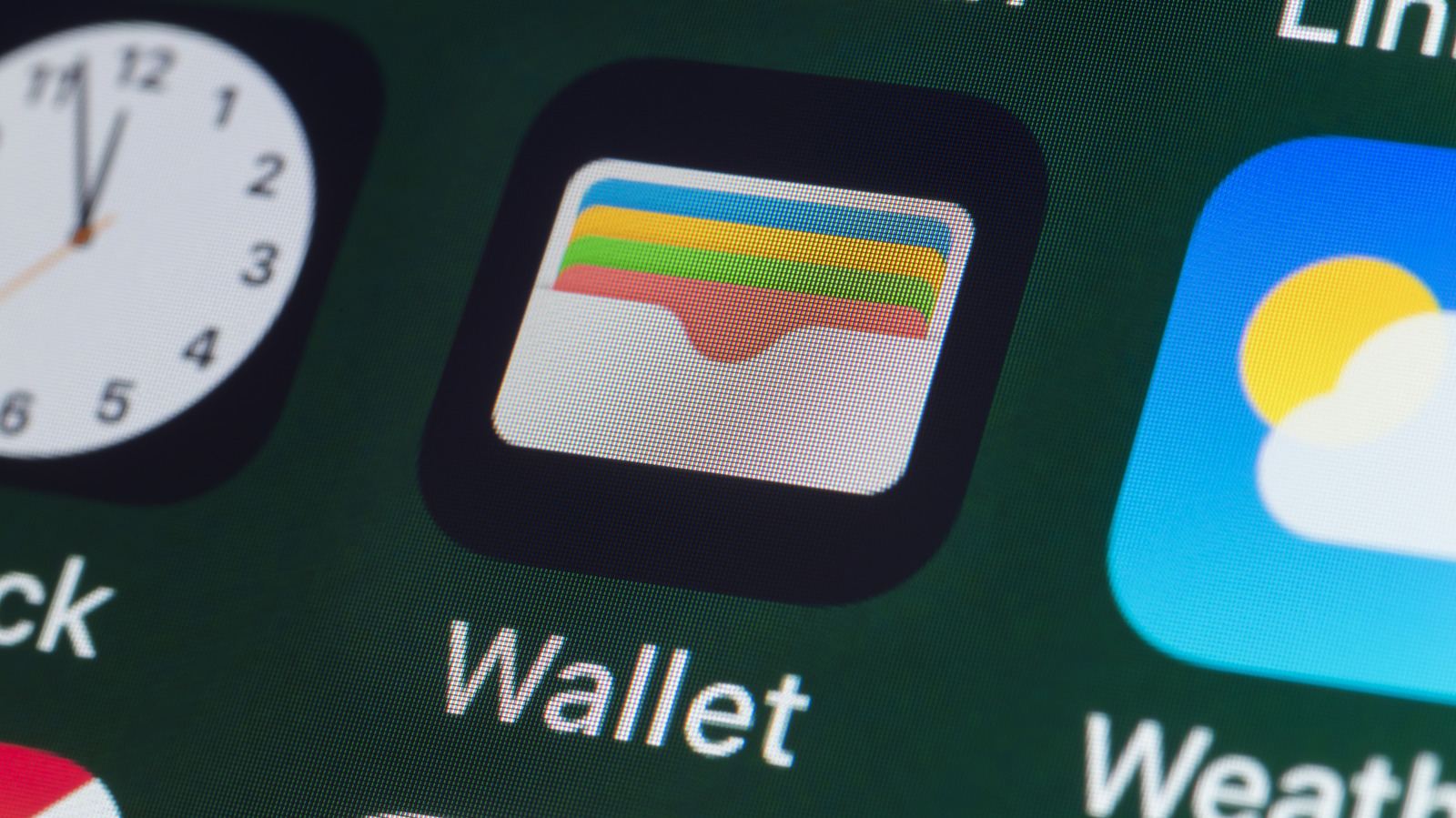
Apple Wallet together with Apple Pay have become essential tools for iPhone owners who want fast, contactless purchases, yet occasional snags can interrupt transactions and annoy users. When a card won’t load, a payment is turned down, or the app won’t launch, the cause is usually a minor software or settings clash that can be sorted out without a service‑center visit.
A common grievance is cards vanishing from the Wallet after an iOS upgrade or a device reset. This usually happens when the iCloud sync options are set incorrectly, stopping the wallet information from reappearing. To recover missing cards, ensure iCloud Keychain is turned on via Settings > [User Name] > iCloud, then go to Wallet & Apple Pay and add the cards again. Signing out of iCloud and signing back in can also trigger a refresh of the stored data.
Declined payments at checkout often arise from network problems or outdated software. Apple Pay needs an active internet link to verify the device’s token with the issuing bank. If a purchase is rejected, confirm that Wi‑Fi or cellular data is working and that the iPhone is running the newest iOS release. Some merchants’ terminals may not yet support the latest NFC protocols; in such cases, deleting and re‑adding the card creates a new token that the terminal can read.
The “Unable to Add Card” message when trying to enroll a new payment method can be caused by restrictive regional settings, a card type that isn’t supported, or a discrepancy between the card’s billing address and the Apple ID information. Users should check that the card comes from a participating bank, verify the address entered matches the bank’s records, and make sure the device’s region aligns with the card’s country of issue. If the issue continues, contacting the card issuer to confirm Apple Pay compatibility is recommended.
Beyond quick fixes, specialists advise regular upkeep to keep Apple Wallet running smoothly. Keep iOS up to date, clear the app’s cache by rebooting the device, and periodically audit the list of active cards to delete any that are no longer needed. For stubborn problems that defy standard troubleshooting, reaching out to Apple support or visiting an authorized service provider is the next best step, ensuring the digital wallet remains reliable for everyday spending.



Comments (0)
Be the first to comment.
Join the discussion