How to Fix an Unresponsive Smartphone Touchscreen: A Step‑by‑Step Guide
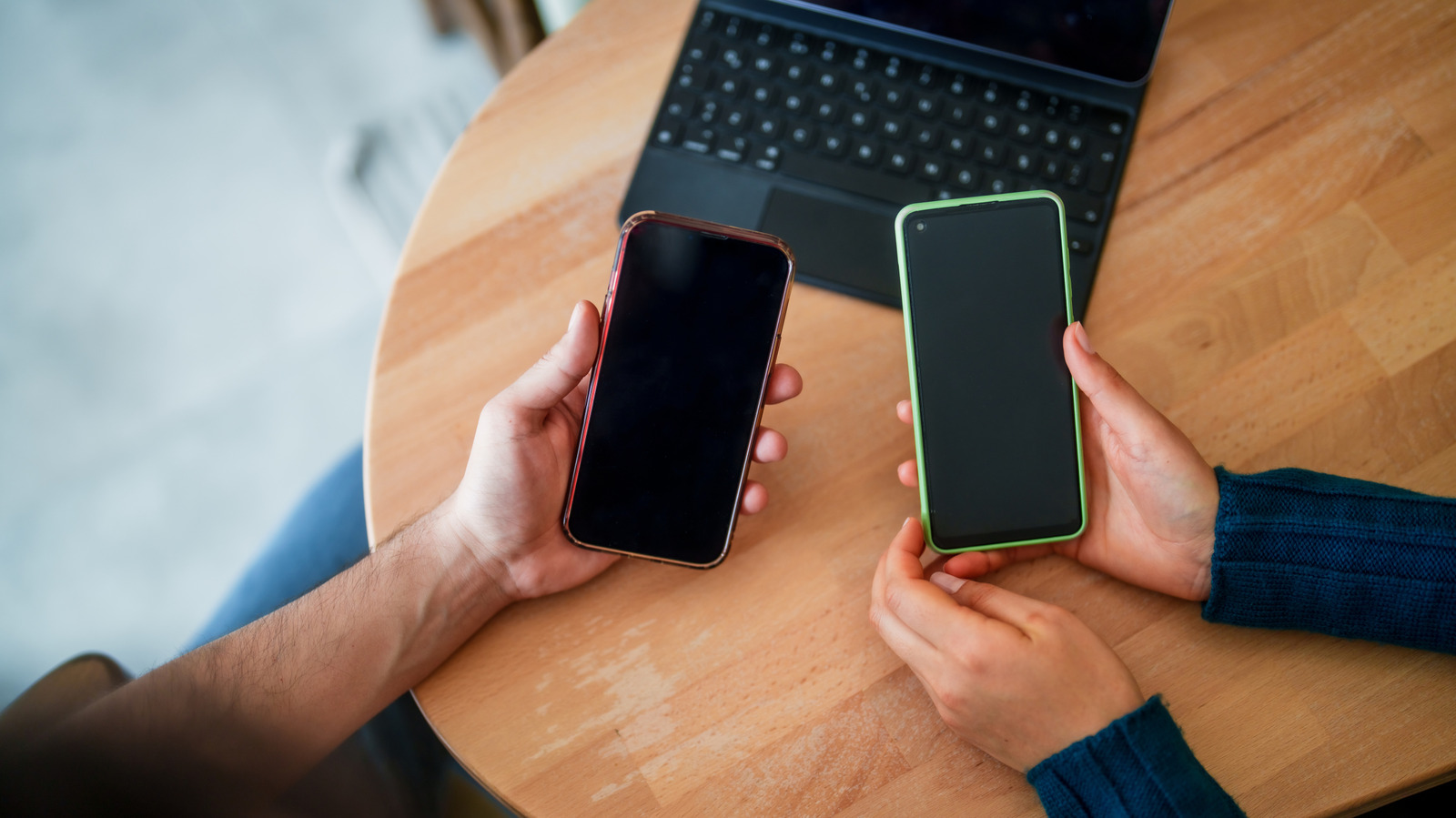
More and more smartphone owners are finding that their displays no longer answer taps or swipes, a defect that can make the device essentially unusable. Before jumping to the conclusion that the hardware is broken, a handful of simple checks often revive the touchscreen and avoid both time loss and repair expenses.
Start by turning the phone off completely and then powering it back on. A basic reboot clears temporary memory glitches that may cause the touch sensor to misbehave. If the screen stays unresponsive, hold the power button for several seconds to force a hard reset, ensuring that any stalled processes are terminated.
Physical obstructions are another common culprit. Dust, oil, or small particles lodged on the glass can interfere with capacitive sensing. Gently wipe the display with a soft, lint‑free cloth slightly dampened with water or a screen‑safe cleaner. Removing protective cases or screen protectors can also eliminate pressure points that distort touch input, especially if the accessories have warped or shifted over time.
Software conflicts often masquerade as hardware issues. Booting the phone into safe mode disables third‑party apps, allowing users to determine whether a recently installed program is causing the touch failure. Likewise, checking for operating‑system updates can resolve bugs introduced in earlier releases. If the device registers touch input after these measures, uninstalling the offending app or applying the update may be sufficient.
When software troubleshooting does not help, a factory reset may be necessary. Backing up personal data beforehand is essential, as the reset erases all user content and restores the phone to its original factory configuration. This step eliminates corrupted system files that can impair the touchscreen driver, offering a clean slate for the hardware to function correctly.
If none of the above actions restore responsiveness, the problem is likely hardware‑related. Issues such as a damaged digitizer, a loose connector, or water intrusion require professional assessment. Users should consult the manufacturer’s warranty terms or a reputable repair shop, as screen replacement is often the definitive solution. Prompt attention can prevent further damage and extend the device’s usable life.



Comments (0)
Be the first to comment.
Join the discussion