How to Choose the Correct Ethernet Port on Your Router
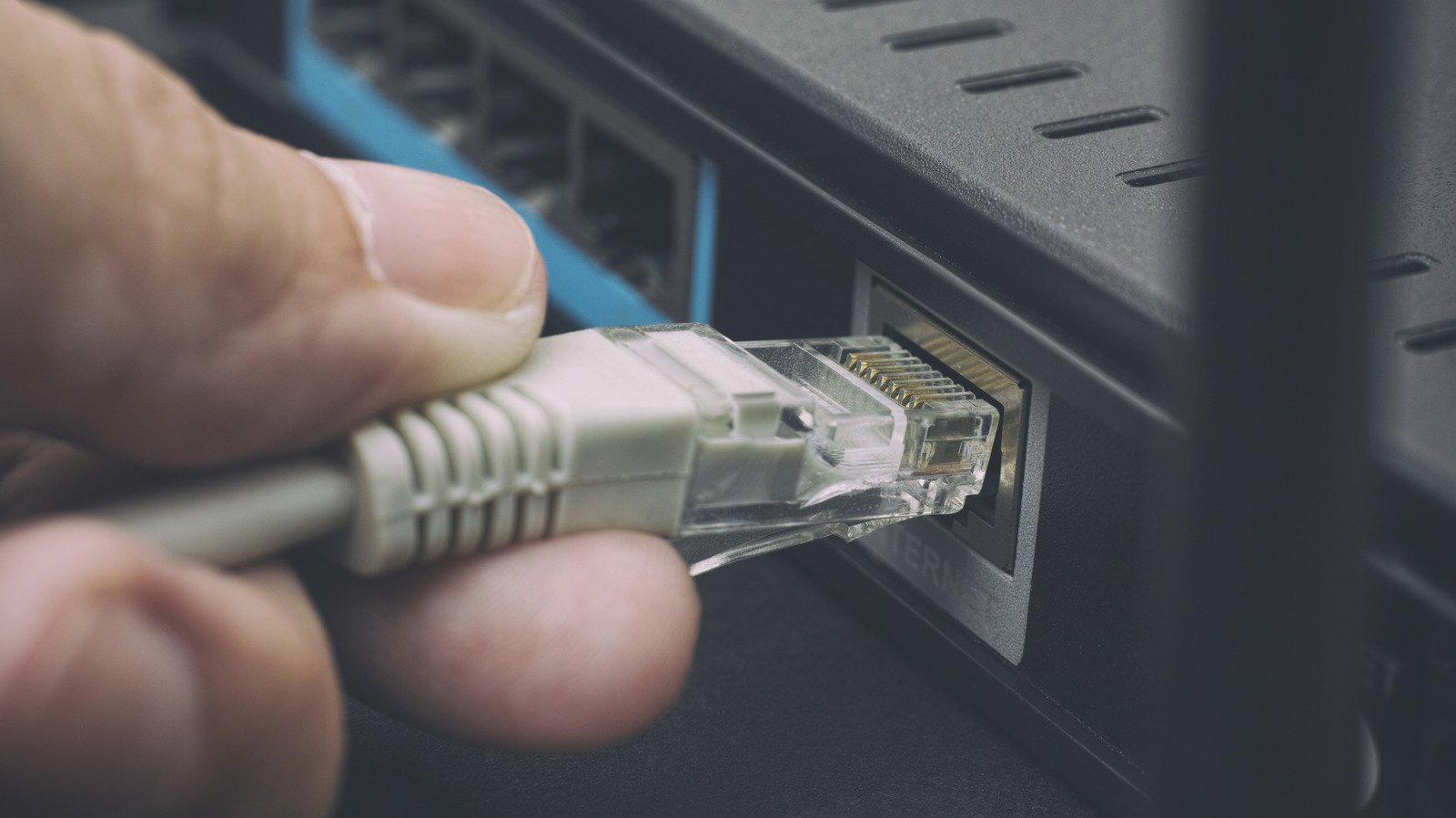
Many home routers come with multiple Ethernet jacks, yet each serves a distinct role. Understanding which jack is meant for the internet feed, internal devices, or dedicated services helps avoid congestion and keeps the network operating at peak efficiency.
Typical consumer routers separate the wide‑area network (WAN) inlet from the local‑area network (LAN) outputs using colors, tags, or symbols. The WAN socket—often colored blue or labeled “Internet”—accepts the modem’s signal, whereas the other ports, usually yellow or gray, pass that signal on to PCs, consoles, and other wired gear.
To determine each socket’s role, begin with the router’s manual, which details every Ethernet jack’s function. Visual hints—like a tiny globe for the WAN side or a switch icon for LAN ports—and the router’s web‑based admin interface also verify assignments. If markings are vague, a simple speed test after plugging in a device will show whether a port caps at 100 Mbps or delivers full gigabit speeds.
Choosing the incorrect port leads to real problems. Hooking a high‑throughput gadget such as a 4K streaming box into a port meant for low‑speed service can trigger buffering, and attaching a modem to a LAN jack may cause double NAT, disrupting online gaming and remote access. Additionally, some routers set aside a specific port for IPTV or VoIP; using it for other purposes can diminish video quality or call stability.
Vendors generally stick to recognizable patterns. Netgear’s Nighthawk line, for instance, sports a blue WAN jack alongside four yellow LAN jacks, whereas Asus models clearly label the WAN socket and sometimes add a “Link Aggregation” port to merge two links for higher speed. Certain mesh units offer one multi‑gigabit port that can act as either WAN or LAN, based on the software configuration.
Choosing the right port becomes increasingly important as broadband speeds surpass the old 1 Gbps limit. Contemporary devices feature 2.5 Gbps, 5 Gbps, or even 10 Gbps Ethernet interfaces, and many current routers provide at least one multi‑gig port to handle such speeds. Plugging a gigabit‑ready device into a regular 1 Gbps LAN socket will needlessly limit its performance.
Home users aiming to fine‑tune their networks ought to check the specifications of each Ethernet jack, refresh the router’s firmware to access any concealed functions, and think about installing a managed switch if the demand for high‑speed links outstrips the router’s built‑in ports. Aligning devices with the correct sockets helps ensure a smoother, more dependable internet experience for all wired connections.



Comments (0)
Be the first to comment.
Join the discussion