Built‑In Windows Utilities Let Users Spot Storage Guzzlers Fast
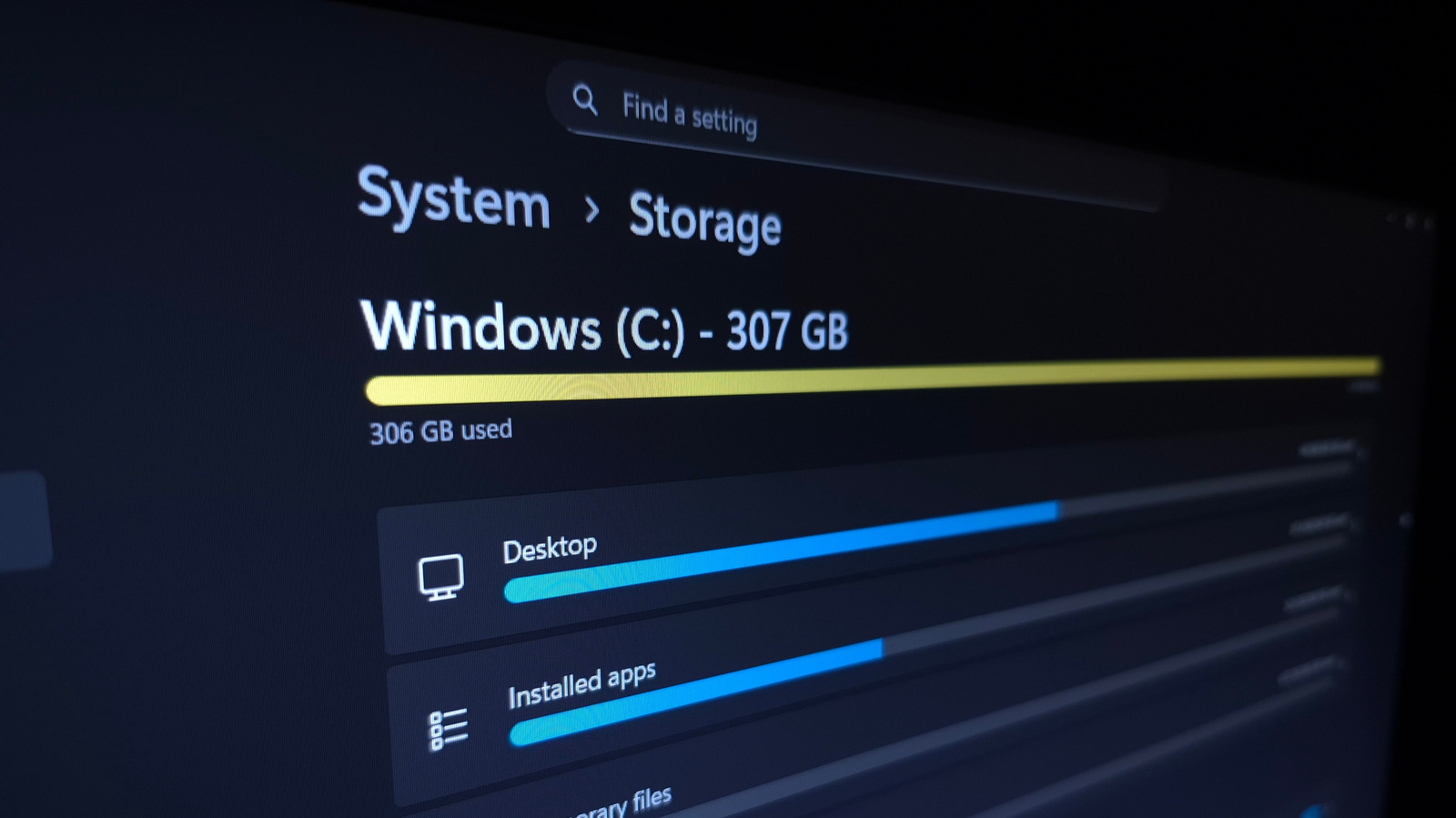
Microsoft has made it easier to find and delete superfluous files on Windows computers, providing a straightforward view of storage consumption and offering single‑click choices to free up space.
Every edition of Windows 10 and Windows 11 ships with a “Storage” section inside the Settings application that displays a graphical summary of disk utilization. Going to Settings → System → Storage shows a color‑coded diagram dividing data into groups like Apps & features, Documents, Temporary files, and Other. Selecting a slice opens a detailed list, exposing the biggest items in that category.
A “Show more categories” button also reveals hidden consumers such as “System & reserved” and “Microsoft Store” data. Within each section, Windows enumerates the highest‑ranking folders and files, enabling users to locate a 10‑GB video clip or an abandoned installer. Clicking “Temporary files” brings up a checklist of items—recycle‑bin contents, old Windows installations, browser cache, among others—that can be safely cleared with one tap.
In addition to manual removal, Windows provides an automated tool named Storage Sense. Once turned on, Storage Sense operates silently in the background, periodically purging items that satisfy set conditions—like Recycle Bin files older than 30 days or temporary files unused for a defined span. The thresholds are adjustable, allowing the cleanup to match individual preferences and storage limits.
Although the built‑in utilities handle typical cases, advanced users may opt for third‑party programs like WinDirStat or TreeSize to obtain finer‑grained analysis. These applications produce treemap graphics that assign each folder and file a proportional rectangle, simplifying the identification of outliers. Still, for most users, the native Storage view offers ample information without requiring extra installations.
Maintaining a slim Windows machine goes beyond convenience. Insufficient free space can degrade file‑system performance, block Windows updates, and, on SSDs, increase wear. Periodic checks of storage usage preserve system speed, guarantee that essential updates install smoothly, and prolong the hardware’s lifespan.
Looking forward, Microsoft has signaled additional tweaks to the Storage experience in future Windows versions. Anticipated upgrades involve tighter OneDrive integration that automatically moves seldom‑used files to the cloud, plus more detailed reporting of system‑reserved space. Until those changes land, the existing Settings‑based solution remains a simple, free way for users to grasp and control the data occupying their drives.



Comments (0)
Be the first to comment.
Join the discussion